Automatically Shutdown Your Computer Without Additional Apps

Sometimes you’re faced with a situation like this: the computer you’re using is processing something. Maybe it’s rendering your ex’s wedding video or downloading a movie. The process takes a while, but you’re in a hurry to meet someone.
On the other hand, you don’t want your laptop or PC to stay on for hours unused until night. What should you do? In this article, we’ll learn how to make your computer shutdown automatically.
Every operating system installed on our computers, whether it’s Windows, macOS, or Linux, has a feature that can automatically turn off the computer after a certain period. Not many people know about this feature because it exists in the form of a command line or instruction line.
Don’t worry, even though it’s in the form of a command line, this feature is very easy to use and doesn’t require any additional applications. Here’s how to do it:
Windows
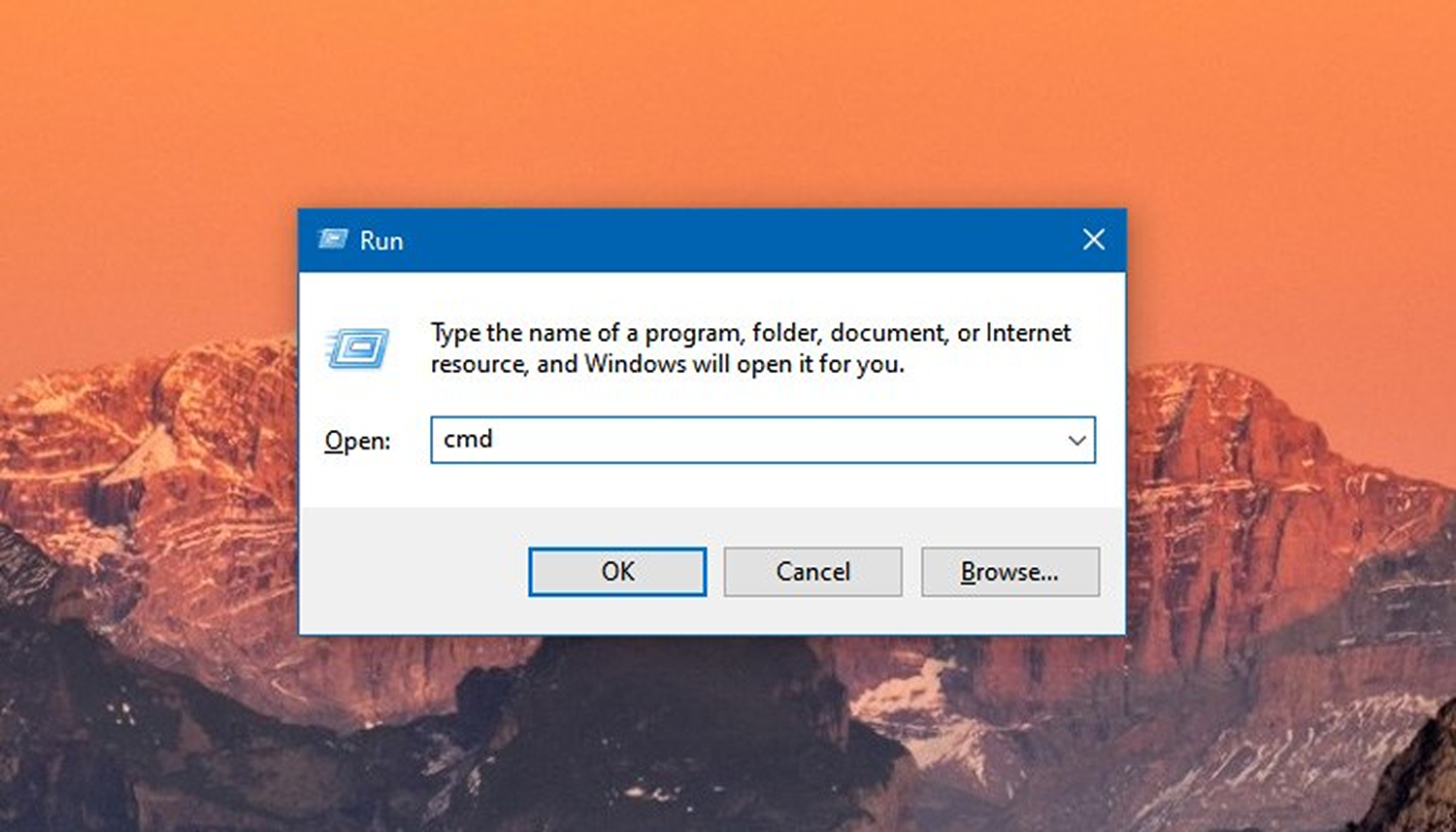
Run the Command Prompt by clicking Start, then type Command Prompt. Even easier, you can access it through the Run menu: press Win+R, type cmd, and press Enter.
Then type the following command line and press Enter:
shutdown -s -t 3600
Here’s an explanation for the options that can be used:
| Command | Explanation |
|---|---|
| shutdown | command to turn off the computer |
| -s | command to shutdown. Can be replaced with -l for logout, -r for restart, and -h for hibernate |
| -f | add this option to force close stubborn programs that might prevent shutdown |
| -a | this option can be used to cancel a previously issued shutdown command |
| -t | timer option for shutdown. If not filled, the computer will turn off in 20 seconds. If filled with 0, the command will be executed immediately. It can also be filled with a number in seconds (e.g., 60 seconds x 60 minutes = 3600 seconds for 1 hour) |
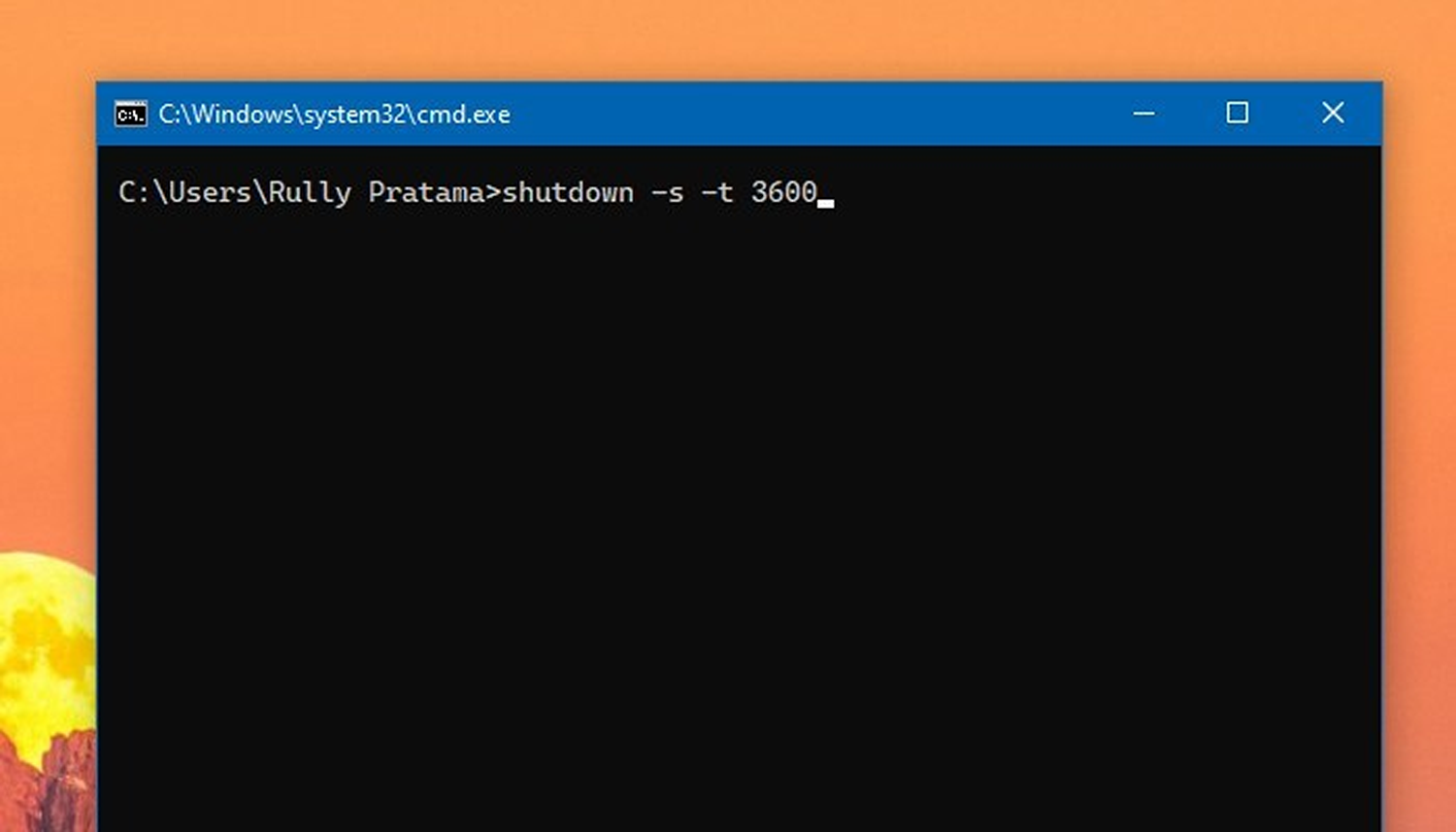
If used frequently, this command can also be made into a shortcut! This shortcut can then be placed on the desktop for easy access.
- Right-click on an empty area of the desktop. Select New > Shortcut.
- “Type the location of the item:” will appear. Fill it with the same command line as the example above. You can also adjust the time as desired. Then click Next.
- After that, enter a name for the newly created shortcut. To make it easy to remember, I’ll name it Turn off 1 hour. Click Finish.
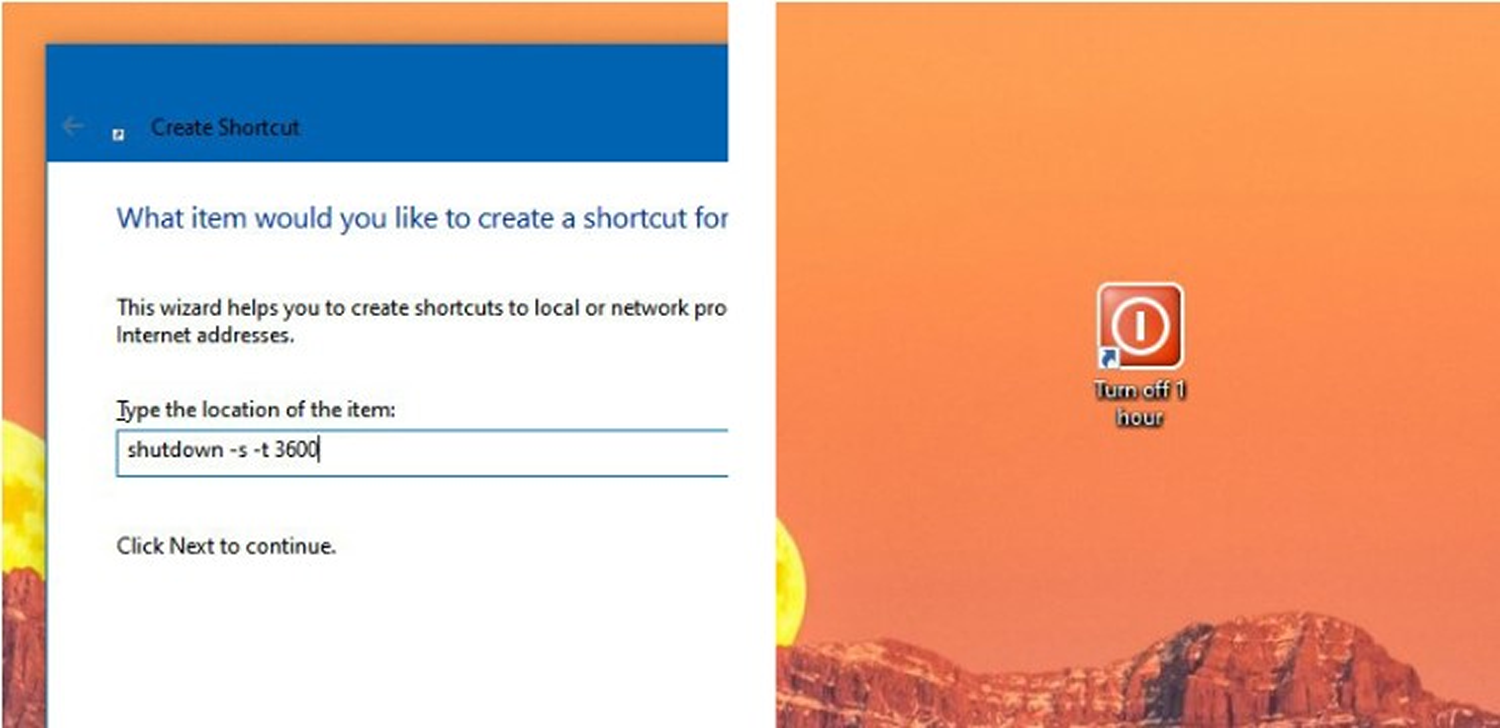
At this stage, the shortcut has been successfully created. However, it doesn’t have an icon yet. Changing the icon is easy. Right-click the shortcut, then select Properties.
On the Shortcut tab, click the Change Icon… button. Select the desired icon, then click OK. Your newly created shortcut should now have its icon changed.
macOS / Linux
macOS and Linux also have a shutdown command accessible via the terminal. But since both OSes are descendants of UNIX, the use of this function is slightly different than in Windows.
On macOS, to access the Terminal, press Command + Space on the keyboard to bring up Spotlight Search. Type “terminal” and press Enter.
Meanwhile, on Linux, accessing the terminal varies from one distribution to another. But generally, the terminal is in the Utilities section of the application list.
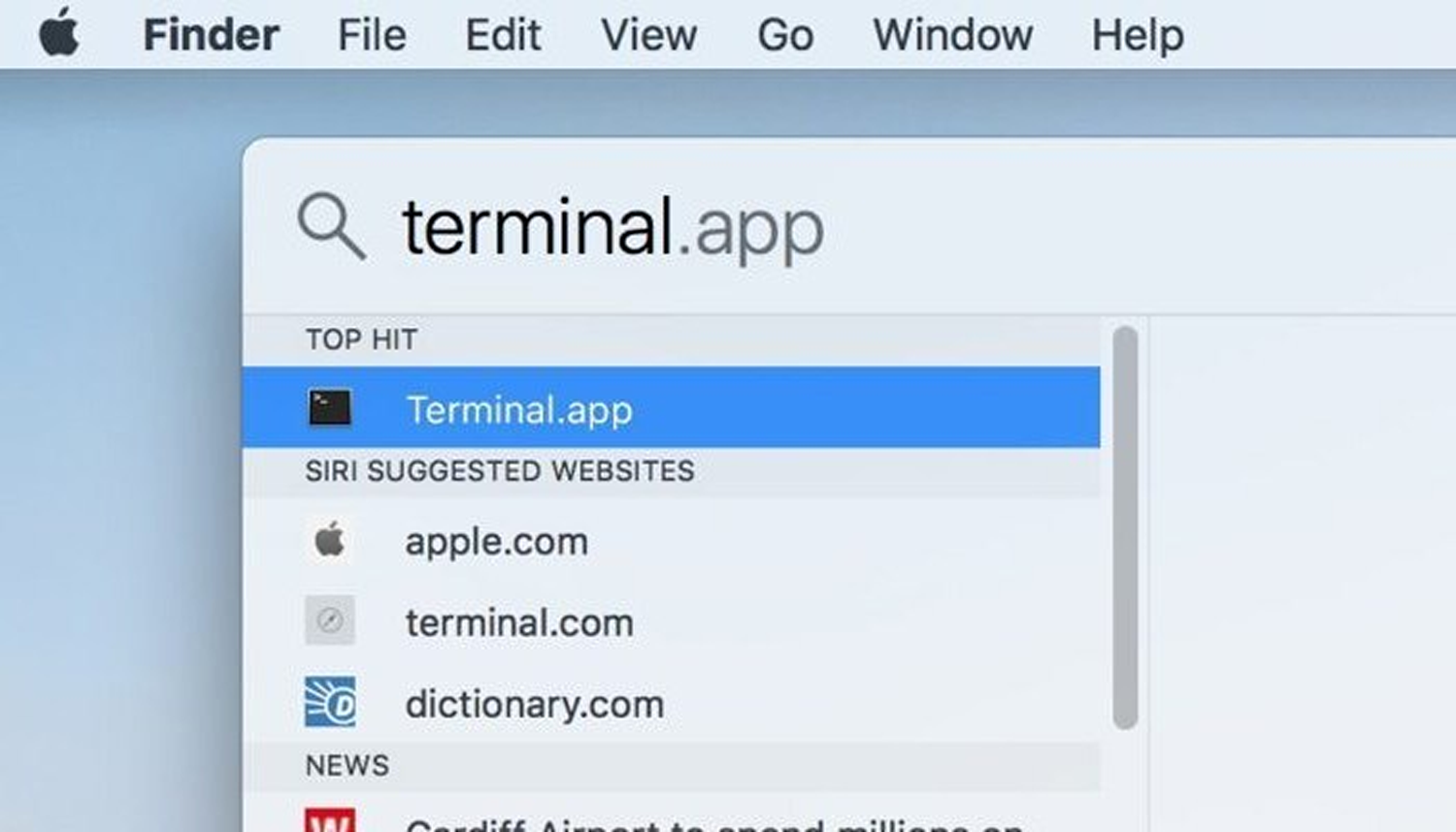
Once the Terminal app is open, enter the following command:
sudo shutdown -h -t 3600
On macOS and Linux, only the root user can call the shutdown command. Therefore, we use sudo. Furthermore, here are the options that can be used:
| Command | Explanation |
|---|---|
| sudo | command to run functions as root user |
| shutdown | command to turn off the computer |
| -h | command to shut down (halt) the computer. Can also use -P which will also turn off the computer. To restart use -r |
| -a | this option can be used to cancel a previously issued shutdown command |
| -t | timer option for shutdown. If not filled, the computer will turn off in 20 seconds. If filled with 0, the command will be executed immediately. It can also be filled with a number in seconds (e.g., 60 seconds x 60 minutes = 3600 seconds for 1 hour) |
| time | besides in seconds, absolute time can also be entered here in hh:mm format e.g. 23:30 |
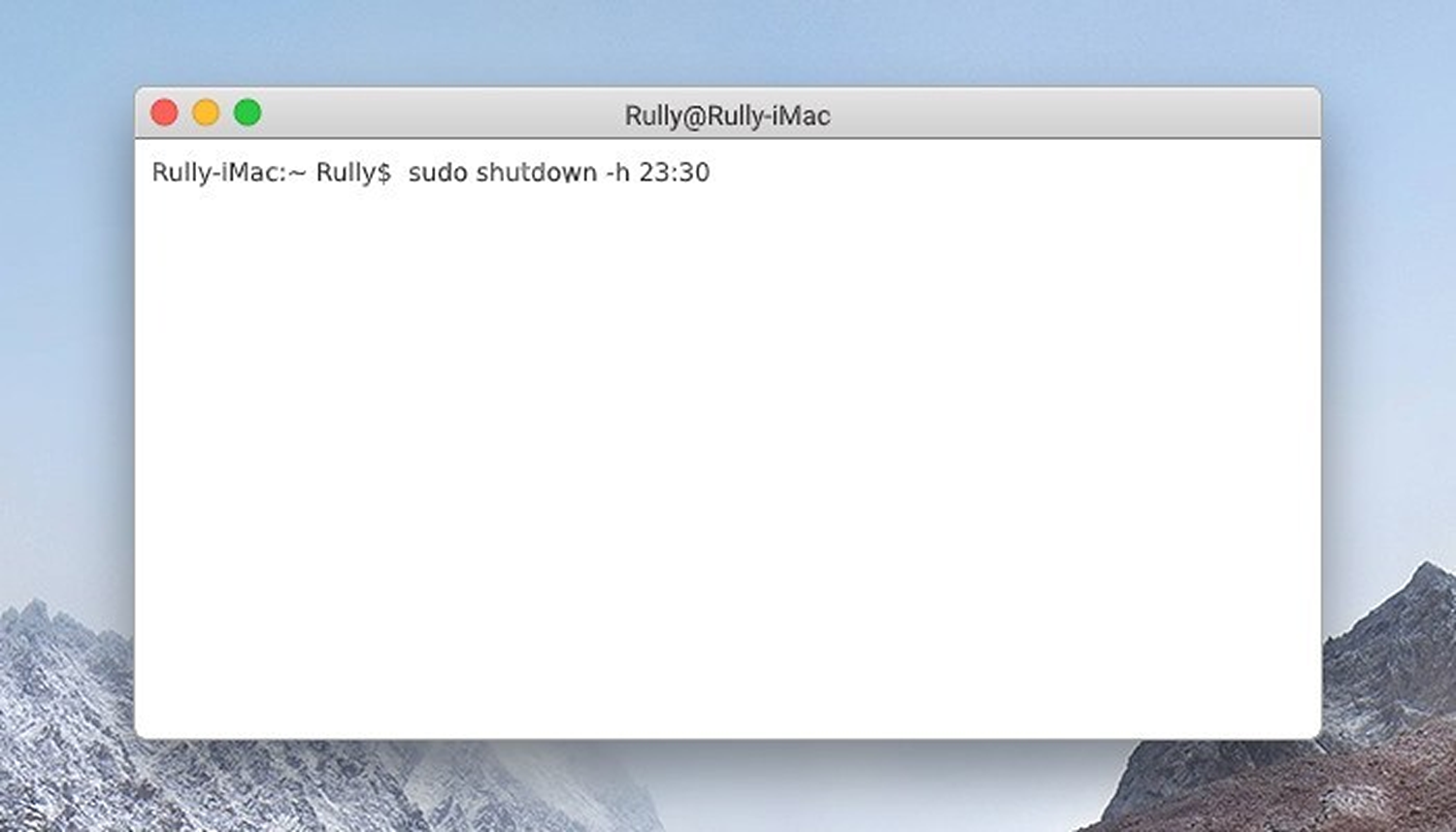
After the command is entered, press Enter, and you’ll be asked to enter your root account password. Press Enter once more after entering the password, and the computer will turn off according to the specified time.
So, that’s an easy way to automatically shutdown your computer without additional apps. Hope it helps! ✨