Changing Hyperlink Color in Microsoft Word, Excel, and PowerPoint
The link or hyperlink feature is a function that serves to make text, objects, or images into active links. When clicked, the text or object given a hyperlink will take the user to the destination link, whether it’s a website page or an email address. Unfortunately, text turns blue when made into a link and its color cannot be changed manually. Fortunately, there is an effective way to work around this.
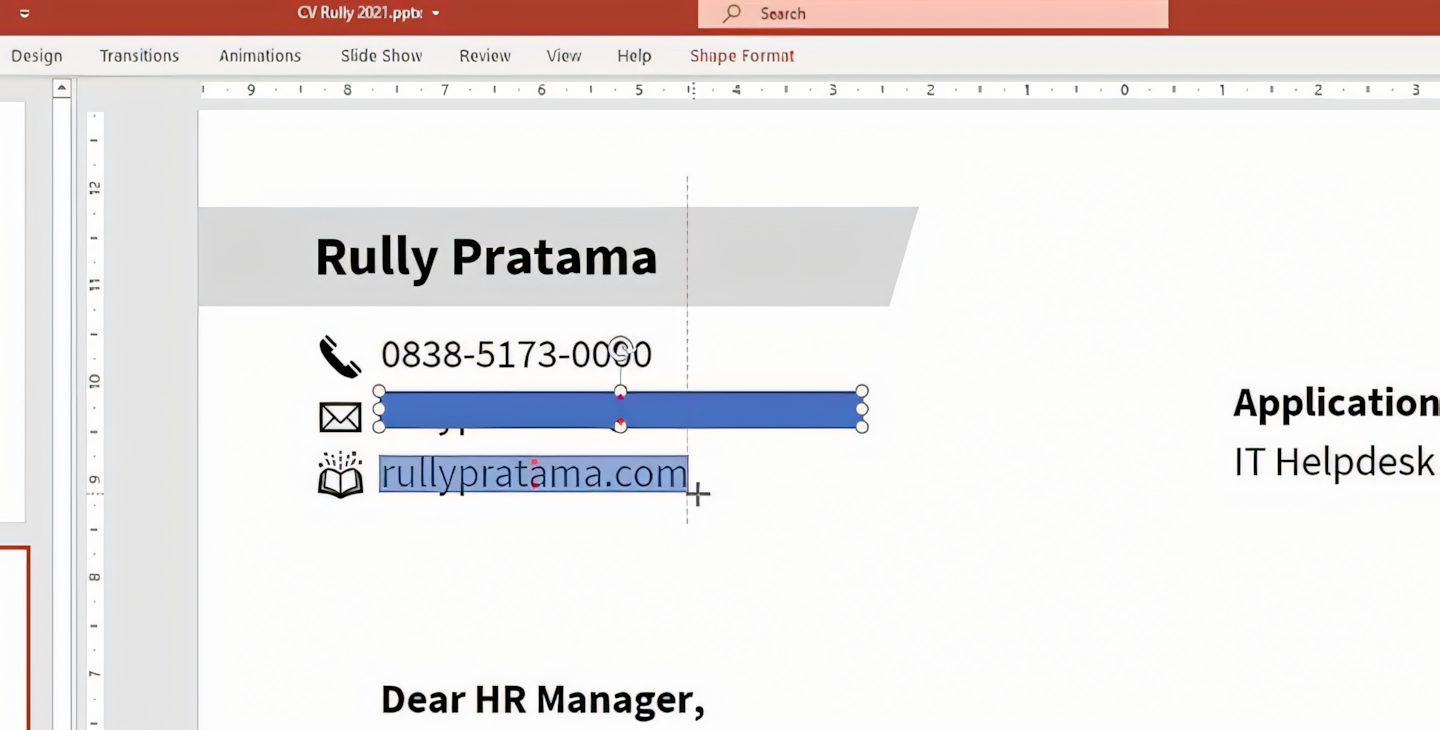
Create a Shape Over the Link Text
The first step is to place a shape over the text that will be made into a hyperlink. Any shape will do, as long as it can cover each part of the text. For example, I’m using a rectangle shape.
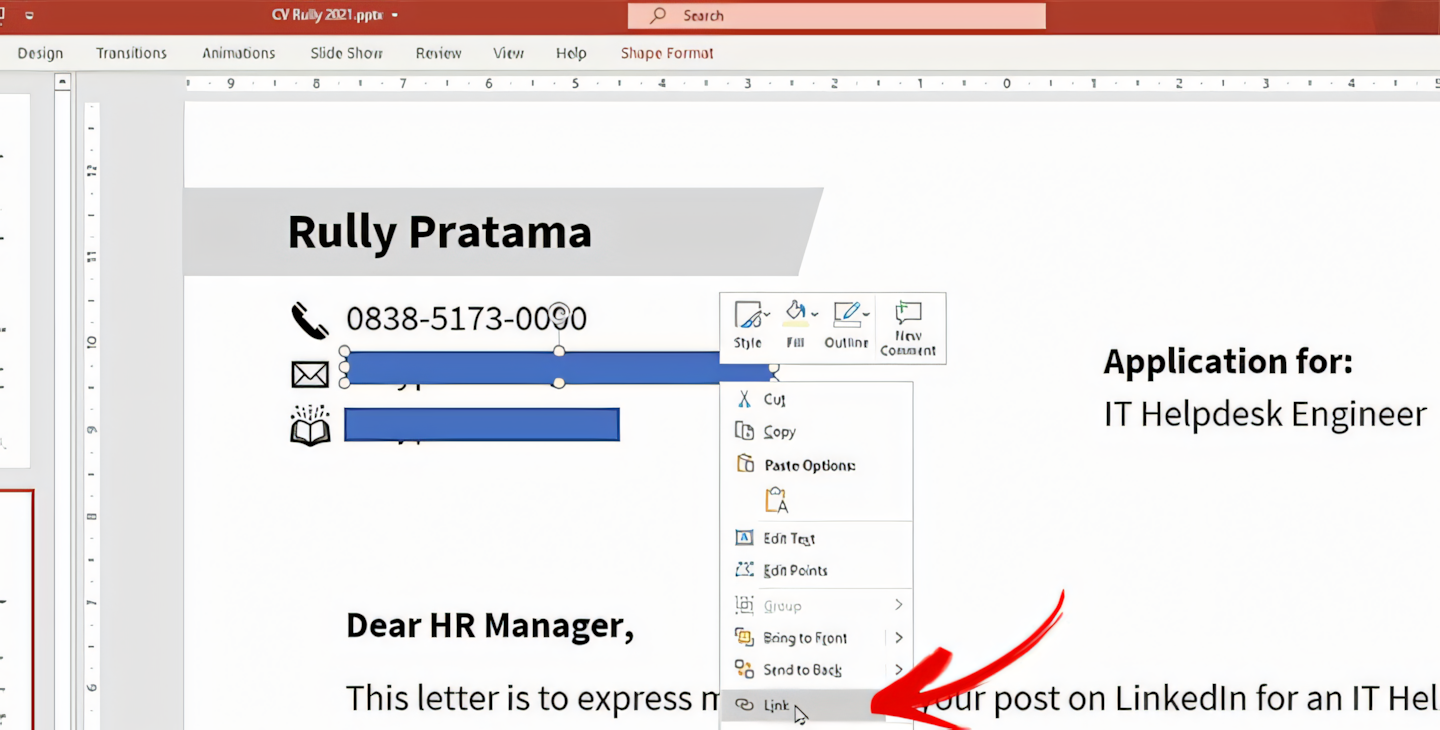
Add the Link Address to the Created Shape
The purpose of the shape we created is to serve as the clickable point for the link. The advantage of using a shape as a link instead of text is that the shape’s appearance doesn’t change when assigned a link. This makes it ideal for disguising links so the original text formatting remains unchanged.
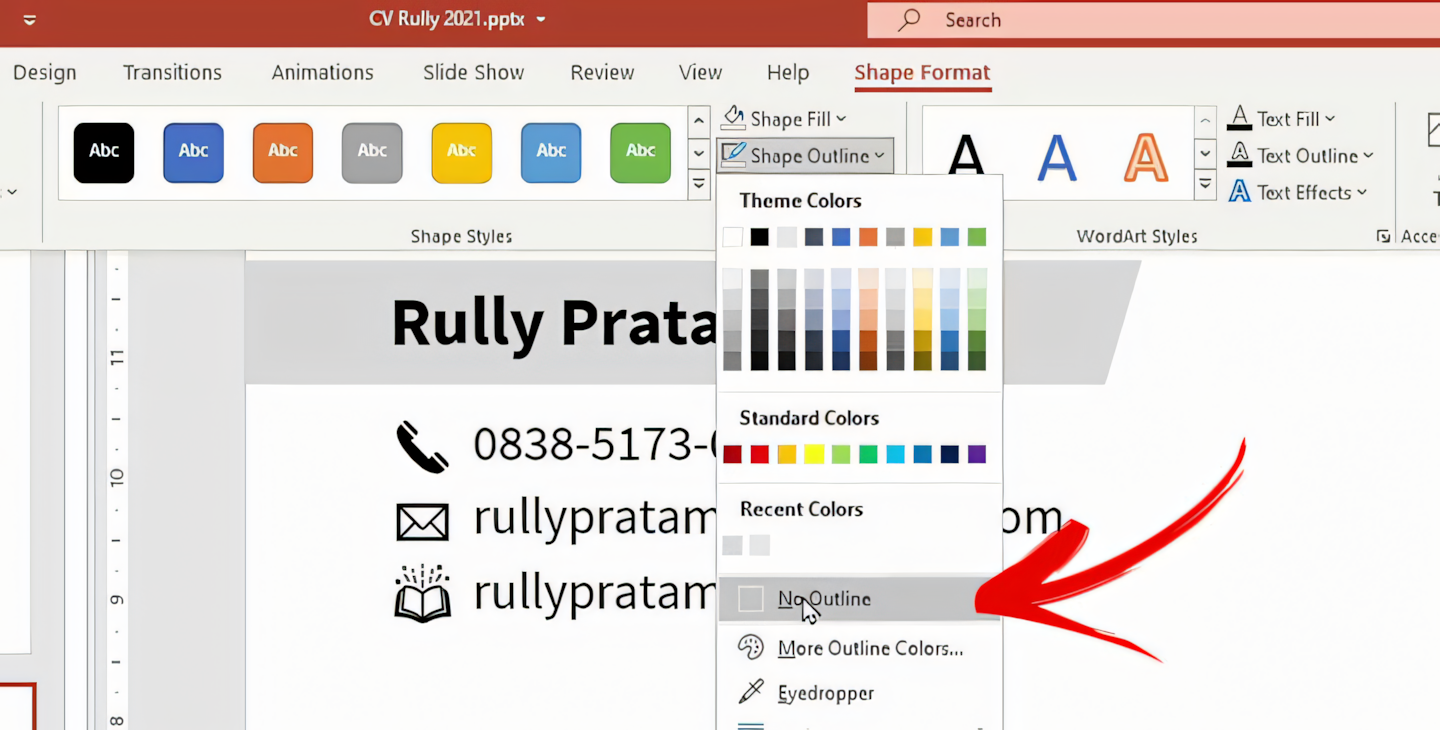
Disguise the Shape So the Text is Visible Again
As mentioned, the shape is only meant to be the link’s click point. To make the text visible again, the shape on top of the text must be made transparent. To do this, set Shape Fill to No Fill and Shape Outline to No Outline. This way, the text underneath will be visible once more.
Well, it’s quite simple, isn’t it? If you’re still having trouble, check out this video tutorial now! ❤️