A Deeper Look at Double Clicking Cells in Microsoft Excel and Google Sheets
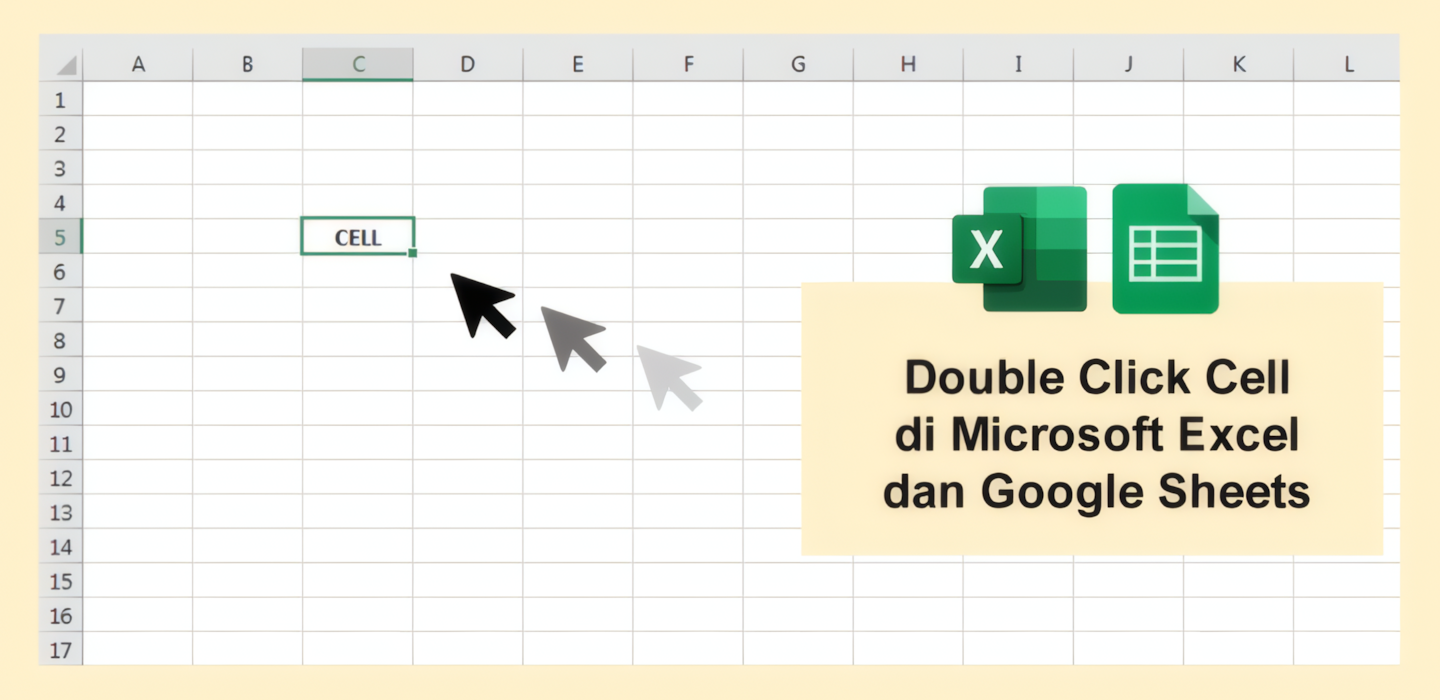
Every spreadsheet document consists of thousands of boxes, which we usually call cells. A cell is the intersection of a row and a column. Columns are denoted by letters (A, B, C), while rows use numbers (1, 2, 3). Therefore, cells have addresses with a combination of letters and numbers, e.g., C30, B15, etc.
Users can interact with cells. From writing values inside, editing, deleting, copying, to pasting. Additionally, interactions with cells can be in the form of dragging or double-clicking. Interestingly, every double-click applied to a cell with different values will yield different results.
Creating Sequences

Double-clicking an active cell can generate a sequence in the empty cells below if the double-clicked cell meets the following criteria:
- Two or more cells containing consecutive numbers (e.g., 1, 2, etc.)
- One cell containing text with a number at the end
- One cell containing a date
Filling Cells with the Same Content

Double-clicking one or more active cells can fill the empty cells below with the same content as the active cell, provided the double-clicked cell meets these criteria:
- One cell containing text
- Two or more cells containing the same number or date (not sequential)
However, Double-Clicking a Cell Does Not Fill Already Populated Cells

Double-clicking one or two active cells will NOT populate other cells if they already contain content. To replace the content of other cells, you must drag the active cell downwards or sideways.
So, those are some of the things that can be achieved through double-clicking cells in Microsoft Excel or Google Sheets. Hopefully, this trick can increase your productivity. Stay curious! ✨