How to Enable Encrypted DNS on iOS and macOS Devices
Actually, since iOS 14 and macOS Big Sur, both operating systems have supported encrypted DNS or DNS-over-HTTPS / TLS. Unlike Android, encrypted DNS settings are not directly accessible to users. Let’s find out how to activate this feature.
DNS and Its Function
Every device connected to the internet has a unique identity. One of these identities is an IP address. For one device to communicate with another, the device’s IP address must be known first.
An IP address is a combination of numbers that is not easily remembered by humans. For example, 103.102.166.224 or 142.251.10.139. To enable humans to access the internet using a specific address, such as google.com or wikipedia.org, there must be a machine that translates the web address into an IP address. This is why DNS (Domain Name System) servers were created.
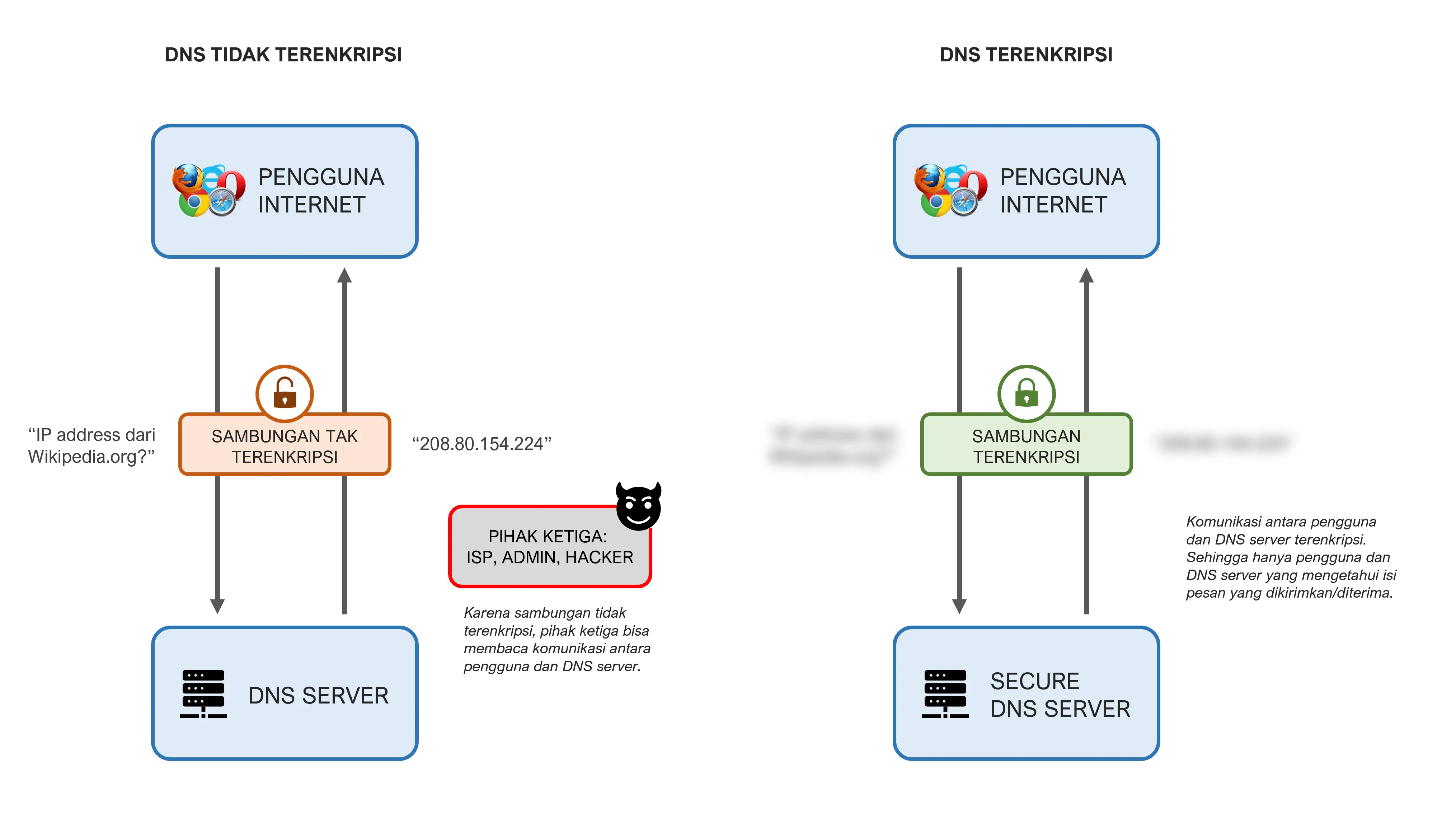
Unfortunately, the web address we aim for can be easily read by other parties, such as internet service providers, Wi-Fi administrators, or even malicious actors. This is because the web addresses we query from a DNS server are unencrypted. To avoid this, it is highly recommended to use encrypted DNS on various devices connected to the internet.
Solution 1: Using Third-Party Applications
I mentioned earlier that the settings for encrypted DNS on iOS and macOS are not easily accessible to users. Therefore, many applications and service providers offer their services. One of them is 1.1.1.1 from Cloudflare. VPN apps like ProtonVPN or NordVPN also enable encrypted DNS when using their services.
While easy to use, I don’t particularly like this solution. Having additional apps on a phone can reduce storage space, make the device heavier, etc. Furthermore, some services, especially VPNs, also ask consumers to pay for more complete features.
Solution 2: Using Native iOS and macOS Features
To use encrypted DNS on iOS / iPhone and macOS / MacBook, users must download a configuration profile that tells the operating system which DNS to use.
Step One
Click the following links to download the configuration profile of the DNS you want to use (if confused, you can use 1.1.1.1 Cloudflare or Google DNS):
Step Two
After downloading one of the profiles above, a notification will appear stating that this website is requesting permission to install a profile on the device. Click Allow. Then go to Settings -> Profile Downloaded. Finally, click install and enter your device passcode.
Congratulations, your device is now using encrypted DNS, making the websites you visit harder to monitor or block by internet service providers! Now your device should be able to open sites blocked by ISPs, such as reddit.com.
However, Keep in Mind…
Although using encrypted DNS can prevent users from being tracked by third parties regarding the sites they visit, it is not impossible for the DNS server we use to store our internet history. Therefore, please choose a DNS server provider you trust most.