Install Windows 11 on PC and Laptop Without TPM and Secure Boot
Artikel ini juga tersedia dalam Bahasa Indonesia.
Many people want to try Windows 11, which was just released in October this year. Unfortunately, many are disappointed because Microsoft requires Windows 11 to be installed on devices that have TPM and Secure Boot. I will share a way to fresh install Windows 11 without TPM and Secure Boot.
Here I assume the reader already has experience installing Windows on a laptop or PC.
For those who frequently install Windows or other operating systems on PC devices, you’re likely familiar with this tool. Shortly after Windows 11 was released, Rufus added support for creating Windows 11 USB installers that can be used on devices without TPM or Secure Boot.
Here is what you’ll need:
- Windows 11 ISO file which can be downloaded from the official website
- Latest Rufus which can be downloaded here
- USB flash disk with at least 8 GB capacity
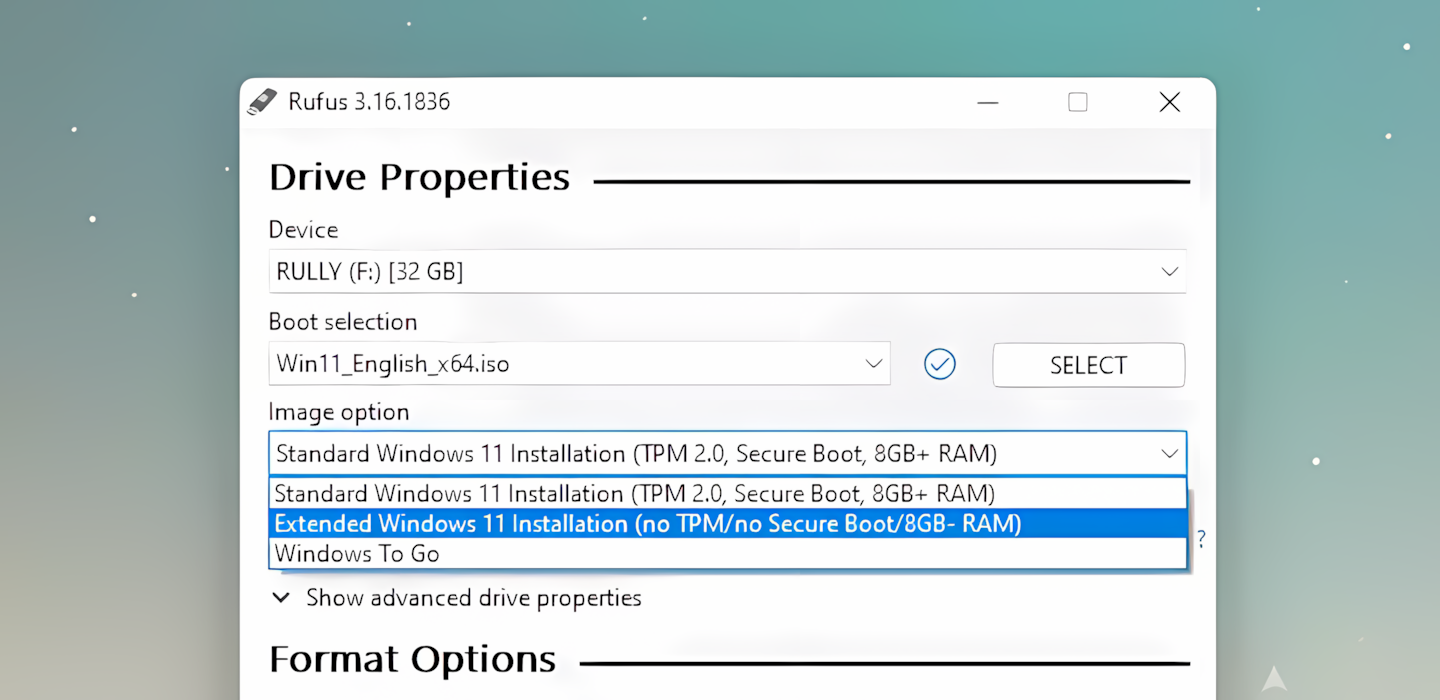
Here are the steps:
- Make sure the USB flash disk is plugged into the PC.
- Open Rufus, select the flash disk you want to use, then select the Windows 11 ISO file.
- Then in the Image Option section, select
Extended Windows 11 Installation (no TPM/no Secure Boot/8GB- RAM). - Click Start and wait until the process is complete.
- Install Windows 11 on your PC or laptop as usual.