Fixing Strange Windows Keyboard Behavior in VMware Fusion on macOS
Recently, I installed macOS on my daily driver PC, aka Hackintosh. However, some work-related applications only run on Microsoft Windows. One example is Microsoft Power BI. So I inevitably installed a virtual machine using VMware Fusion to run those applications. But I experienced some strangeness related to the keyboard.
Ctrl + Arrow Causes macOS to Switch Desktops
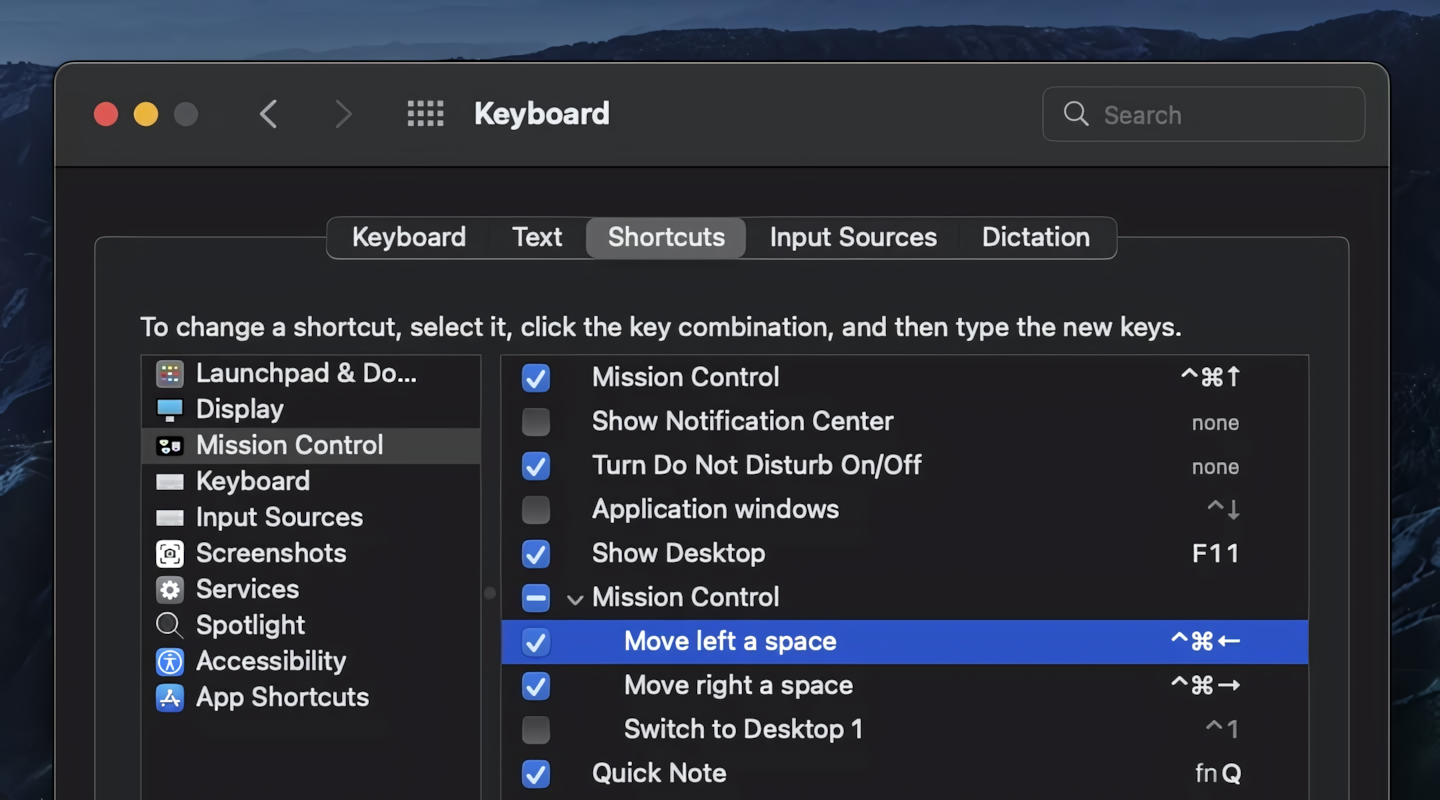
The combination of the Ctrl key plus an arrow, Ctrl + → for example, is very often used for navigating between cells in Microsoft Excel. Unfortunately, when I use this key combination, instead of my cursor moving, my host operating system responds by switching from one desktop to another.
This is because the Ctrl + ← or Ctrl + → key combinations are used by macOS for the function mentioned above. The solution is, I changed the key combination to Control + Command + → so it doesn’t collide with Windows. This setting can be found in Settings → Keyboard → Shortcuts → Mission Control → Move left a space / Move right a space.
Ctrl + Left Click Becomes Right Click
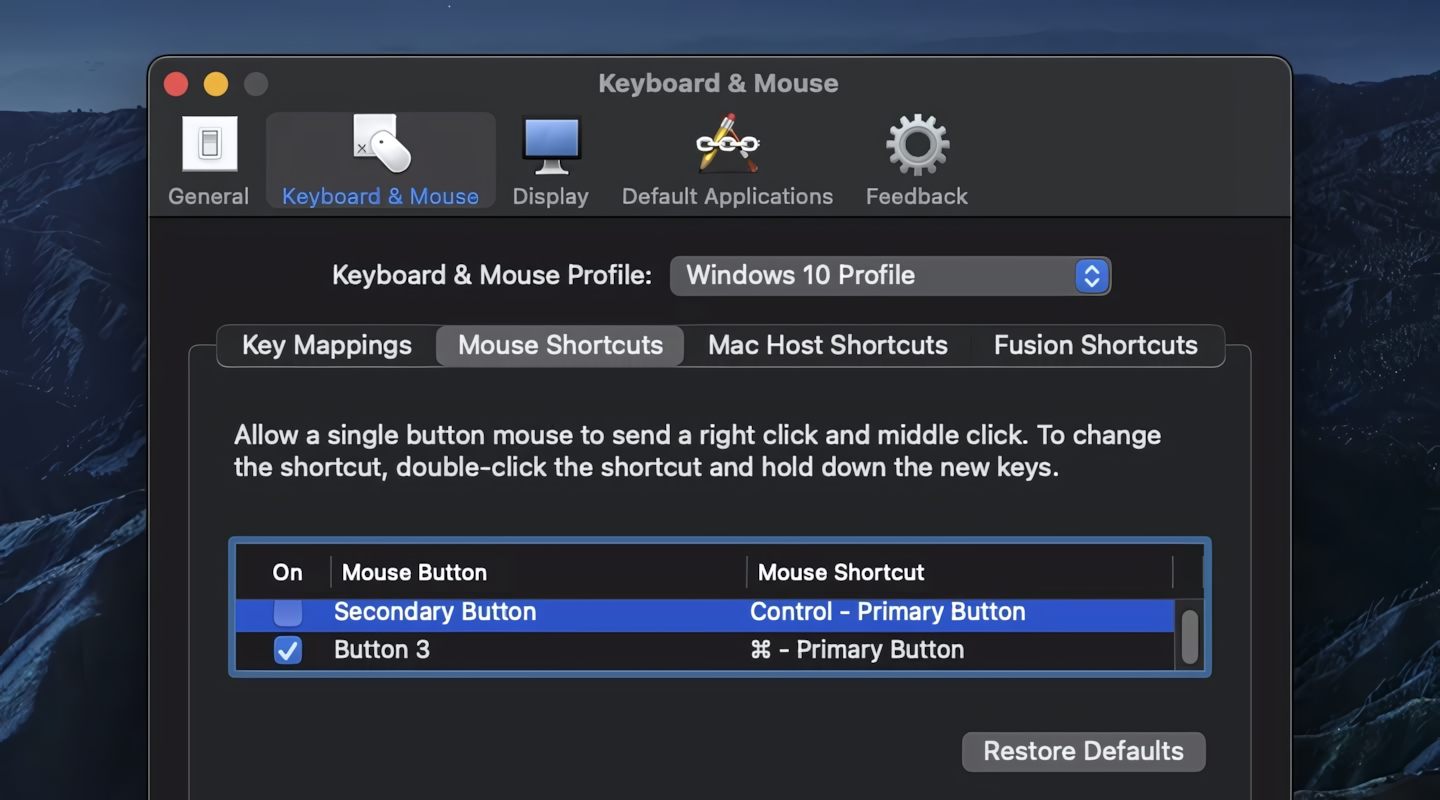
One of the key combinations in macOS that I find ‘strange’ is Ctrl + Left Click being translated as Right Click. This behavior is also carried over to Windows via VMware. But the good news is this function can be disabled as follows.
Through the VMware menu bar, go to Virtual Machine → Settings → Keyboard & Mouse, select the active profile, then click the Edit profile… button. Then go to Keyboard & Mouse → Mouse Shortcuts. There, turn off the Secondary Button option. That way the Ctrl + Left Click combination will work as it should in Windows.
Hope this helps! ✨