Installing MikroTik RouterOS on a Headless Mini PC via Serial Console
A few months ago, I decided to switch from pfSense to MikroTik RouterOS. The device I use is a small network appliance based on the Intel Atom CAF 1020 C2358, which I snagged on Tokopedia for around 900k IDR.
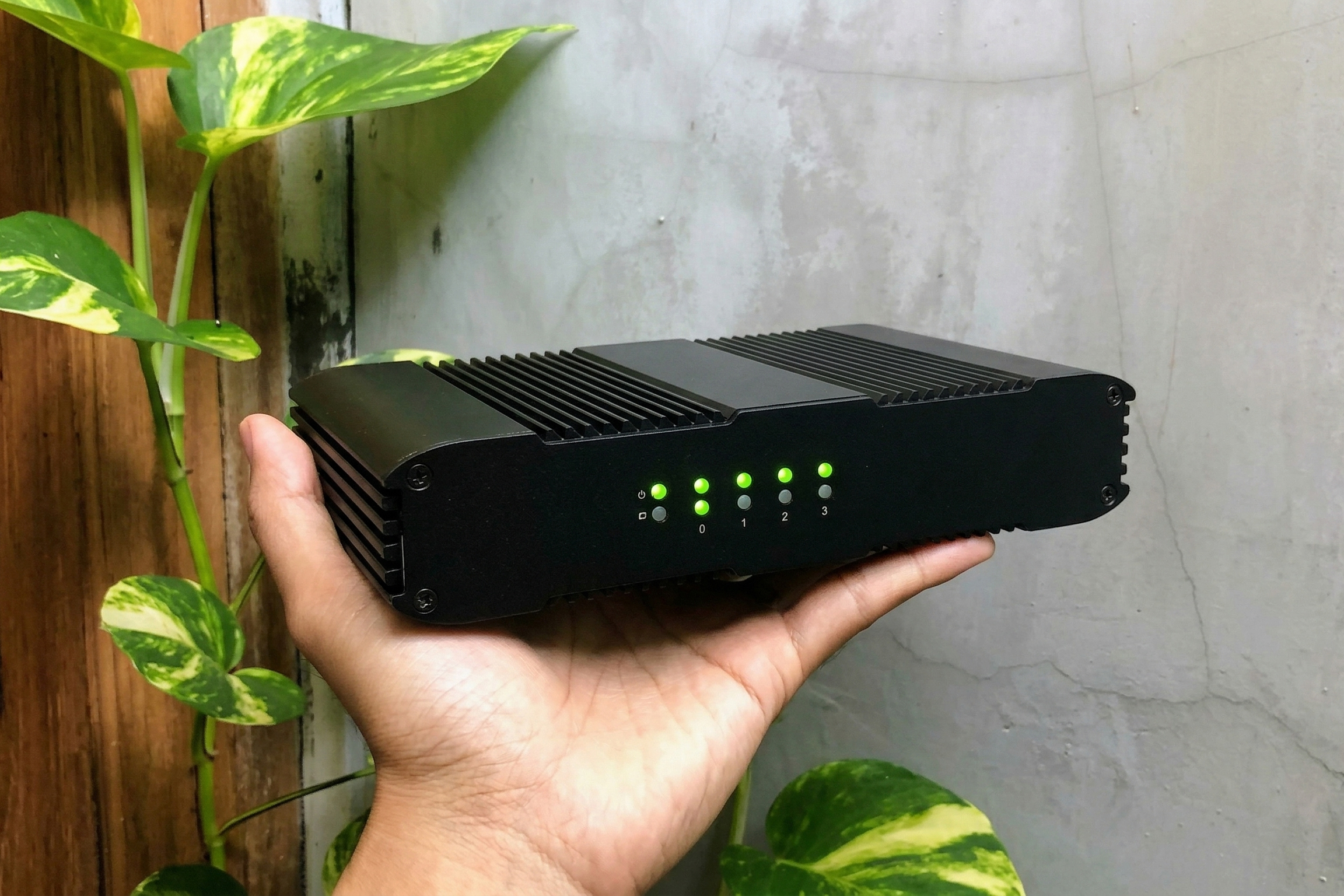
My reason for leaving pfSense was quite simple: I really like RouterOS’s lightweight nature, incredibly fast boot time, and the more granular customization offered by WinBox.
This device is very power-efficient, drawing only about 10 watts even under load. The cooling system is passive, so the device’s body will feel slightly warm to the touch. As of writing this, this tiny router has been running for almost a year without any issues at all.
The Headless Installation Challenge
Although the hardware is very satisfying, this appliance doesn’t have any video output ports (VGA/HDMI) at all, meaning it’s completely headless. When I installed pfSense back then, the process went very smoothly because the pfSense installer natively supports booting via a serial session.
Unfortunately, installing MikroTik RouterOS is not that easy. Its default installer won’t show anything on the serial console automatically. So we need a little modification to redirect the installation display to the serial port.
The Solution: Modifying syslinux.cfg
The workaround is actually quite simple. We just need to edit the syslinux.cfg configuration file located inside the installation media (like a USB flash drive).
Open the installation media from another PC, then find and edit the file. Add the SERIAL and CONSOLE commands at the very top, then insert the console=ttyS0,115200n8 parameter on the APPEND line.
More or less, the modified syslinux.cfg will look like this:
$ cat /mnt/syslinux.cfg
SERIAL 0 115200
CONSOLE 0

default system

LABEL system
 KERNEL linux
 APPEND console=ttyS0,115200n8 load_ramdisk=1 -install -hdd
After the file is saved, boot the mini PC again using the modified installation media. Now, the MikroTik RouterOS installation menu will appear perfectly in the serial console application (like PuTTY or Tera Term) connected to your PC.
Happy tinkering! ✨